
Android
Slint supports building Android applications in both Rust and C++. See also android module in the Rust API documentation.
Project Setup
Section titled “Project Setup”Slint uses the android-activity crate ↗ as the interface to
the operating system, which is re-exported as slint::android::android_activity.
To get started, follow these steps:
First, your project needs to be a library crate. Add the following to your Cargo.toml:
[lib]crate_type = ["cdylib"]Select the version of android-activity you want to use:
[dependencies]slint = { version = "1.18.0", features = ["backend-android-activity-06"] }It is safe to enable this feature unconditionally.
Then, in your lib.rs, add this function:
#[cfg(target_os = "android")]#[unsafe(no_mangle)]fn android_main(app: slint::android::AndroidApp) { slint::android::init(app).unwrap(); let main_window = ...; // window generated by the Slint macros main_window.run().unwrap();}You can also add an Android event
(android_activity::PollEvent ↗)
listener by replacing the call to slint::android::init with slint::android::init_with_event_listener.
Next, we’re going to set up the environment to build the project.
A Slint C++ Android application is a standard CMake project (see the getting started tutorial) with an Android-specific Gradle wrapper. The C++ code lives at the project root and works for both desktop and Android builds. The only Android-specific difference in CMake is building a shared library instead of an executable:
if(ANDROID) add_library(app SHARED main.cpp)else() add_executable(app main.cpp)endif()When Slint is configured with the Android NDK toolchain, its CMakeLists.txt automatically:
- Detects the Android target and maps the ABI to the correct Rust target.
- Selects Slint’s Android backend and a suitable renderer.
- Sets the Material style as default.
The android/ subdirectory contains the Gradle project that wraps the CMake build:
my-app/├── CMakeLists.txt # Builds your app (desktop & Android)├── main.cpp # Your application code├── main.slint # Your Slint UI├── android/│ ├── build.gradle.kts # Gradle config: SDK versions, CMake path│ ├── settings.gradle.kts│ ├── gradle.properties│ └── src/main/│ └── AndroidManifest.xmlandroid/build.gradle.kts
Section titled “android/build.gradle.kts”plugins { id("com.android.application") version "8.7.0"}
android { namespace = "com.myproject.app" compileSdk = 35
defaultConfig { applicationId = "com.myproject.app" // API 26 (Android 8.0) is the minimum supported by the Slint Android backend. minSdk = 26 targetSdk = 35
ndk { // Add other ABIs as needed: "armeabi-v7a", "x86_64", "x86" abiFilters += "arm64-v8a" } }
externalNativeBuild { cmake { path = file("../CMakeLists.txt") version = "3.22.1" } }}android/src/main/AndroidManifest.xml
Section titled “android/src/main/AndroidManifest.xml”<?xml version="1.0" encoding="utf-8"?><manifest xmlns:android="http://schemas.android.com/apk/res/android"> <application android:label="My Slint App" android:hasCode="false"> <activity android:name="android.app.NativeActivity" android:exported="true" android:configChanges="orientation|screenSize|keyboardHidden"> <meta-data android:name="android.app.lib_name" android:value="app" /> <intent-filter> <action android:name="android.intent.action.MAIN" /> <category android:name="android.intent.category.LAUNCHER" /> </intent-filter> </activity> </application></manifest>Android Setup
Section titled “Android Setup”The Android development workflow centers around the adb command line tool. Use it to connect to
Android devices and emulators to upload and run applications.
The easiest way to install the Android development environment is to download and install Android Studio ↗. In the settings pane, navigate to the Android SDK page and install all SDK versions you need. We recommend to use the latest version available, because it can be configured to be backwards-compatible with older versions of Android. The SDK Manager is available in the settings in “Languages & Frameworks” > “Android SDK”.
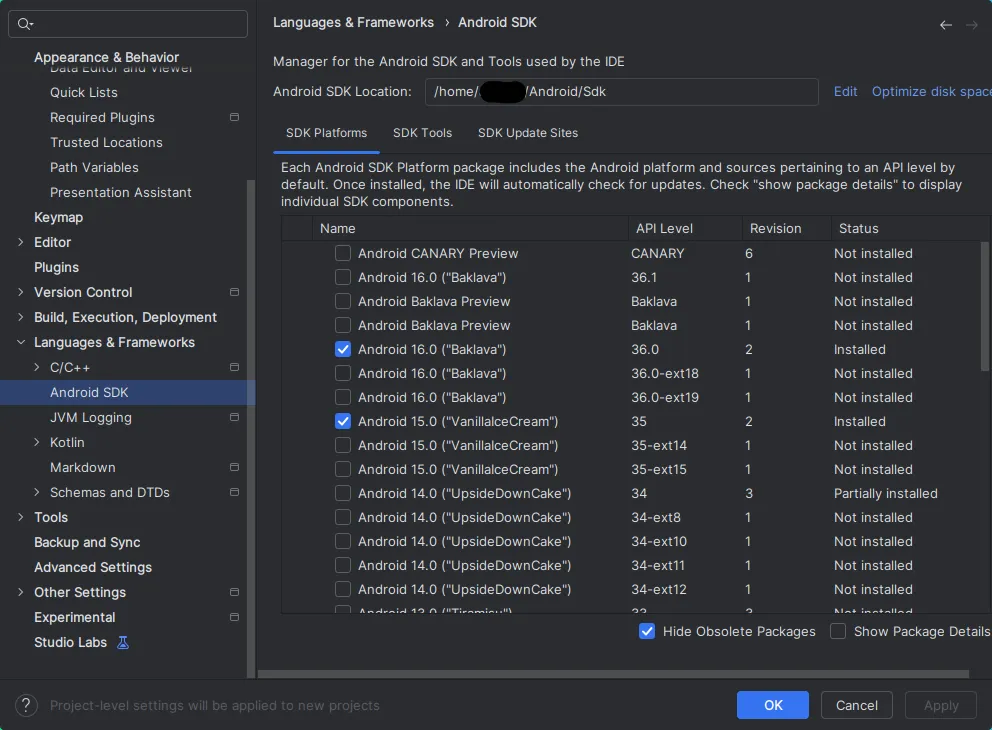
Also note the SDK location on top, this path might have to be used for the ANDROID_HOME environment
variable if the build tools can’t detect it automatically.
In the SDK Manager, also install:
- The Android NDK (under the “SDK Tools” tab)
- CMake (under the “SDK Tools” tab)
Set up these environment variables so the build can find the NDK:
export ANDROID_HOME=$HOME/Android/Sdkexport ANDROID_NDK_ROOT=$ANDROID_HOME/ndk/<version>Rust Toolchain
Section titled “Rust Toolchain”Slint is written in Rust, so a Rust toolchain is needed to compile for Android. Install Rust via the Rust Getting Started Guide ↗, then add the Android target:
rustup target add aarch64-linux-androidAdd other targets if you need to support additional ABIs:
rustup target add armv7-linux-androideabi # armeabi-v7arustup target add x86_64-linux-android # x86_64 (emulator)rustup target add i686-linux-android # x86 (emulator)Add the platform-tools directory to your PATH so that the adb tool is available on the command
line.
To get a list of Android devices, simulators and emulators currently attached to your machine, run
adb devicesYou can connect to a physical device on the network by using
adb connect <host>The host is the IP address of the device; it has to have development mode enabled.
Virtual Device Setup
Section titled “Virtual Device Setup”We recommend developing using a virtual device first, because it speeds up the development cycle. However, eventually you have to also test on a device to make sure that the interface is usable on a touch screen and to verify the look and feel.
To create and run a virtual device, use the Virtual Device Manager available in Android Studio. You can open it from its main screen under “More Actions”:
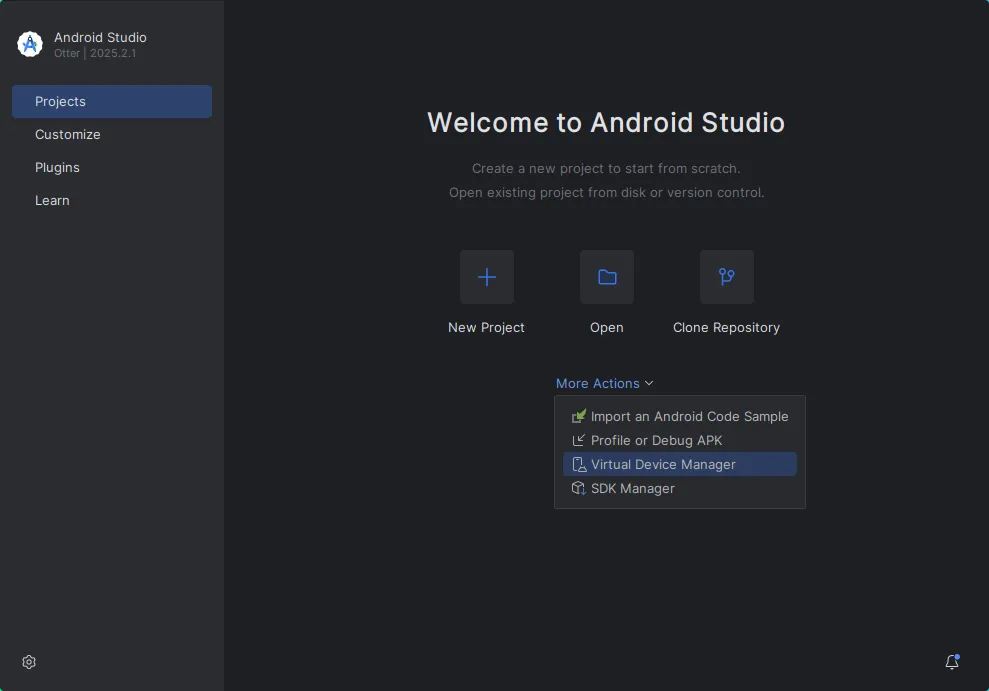
You can create any number of devices with different configurations here:
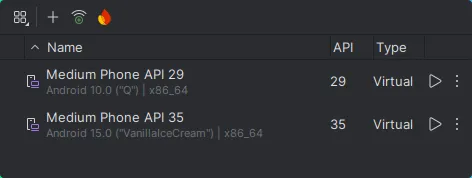
A good approach is to have one device with the minimum API level supported by your application and another one with the latest release to make sure it runs on both.
Running virtual devices connect to adb automatically.
Virtual Keyboard
Section titled “Virtual Keyboard”Depending on the device template you pick, the virtual devices created here might use a hardware keyboard by default, which is not helpful for testing your application.
To fix this, click on the three vertical dots next to the device in the manager to open up the menu
and select “Show on disk”. In the directory displayed, open the file config.ini in a text editor.
Navigate to the line hw.keyboard=yes and change it to hw.keyboard=no, then
save the file.
This brings us to choose a stylus:
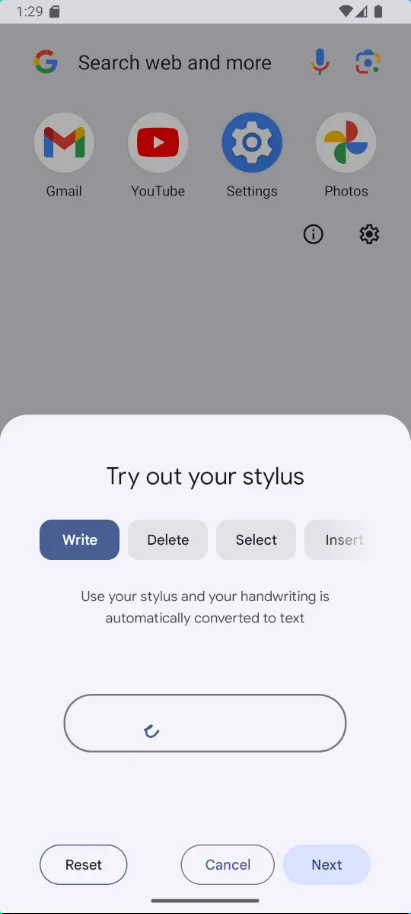
Disable the stylus input in the keyboard settings:
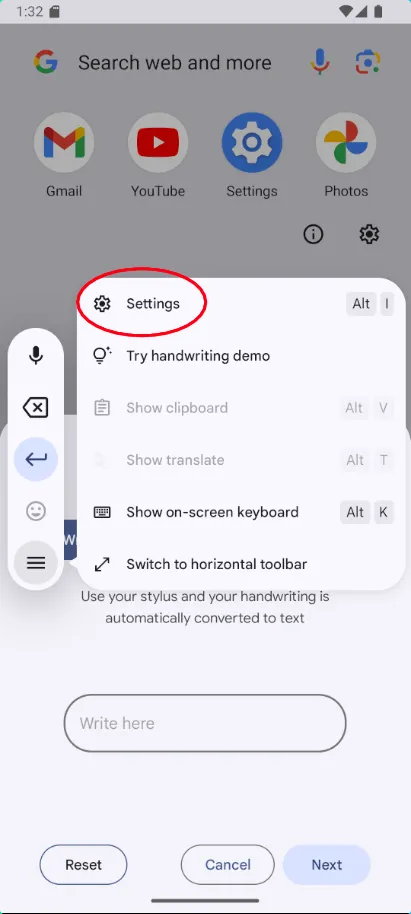
Select “Write in textfields” in the list and then disable that feature. This enables the regular virtual keyboard.
Writing Your Application
Section titled “Writing Your Application”Define your main function and UI in your lib.rs:
#[cfg(target_os = "android")]#[unsafe(no_mangle)]fn android_main(app: slint::android::AndroidApp) { slint::android::init(app).unwrap(); let main_window = MainWindow::new().unwrap(); main_window.run().unwrap();}You can also add an Android event
(android_activity::PollEvent ↗)
listener by replacing the call to slint::android::init with slint::android::init_with_event_listener.
On Android, the entry point is slint_main instead of main.
Slint provides the actual android_main entry point internally,
and calls your slint_main once the platform is initialized.
To share a main.cpp between desktop and Android builds, use a preprocessor guard:
#ifdef __ANDROID__extern "C" void slint_main()#elseint main()#endif{ auto window = MainWindow::create(); window->run();}Building and Running
Section titled “Building and Running”Slint doesn’t require a specific tool to build, upload, and run Android apps written in Rust.
The app’s activity must be android.app.NativeActivity, or a subclass of it,
because that’s the activity type Slint’s Android backend supports.
This section covers some common tools that can package such an app.
None of them needs Android Studio.
cargo-apk2
Section titled “cargo-apk2”cargo-apk2 ↗ builds, signs, and installs the APK from your Cargo.toml,
and can also compile Java and Kotlin sources into it.
Install it and run your app on the connected device:
cargo install cargo-apk2cargo apk2 run --target aarch64-linux-android --libDeclare the NativeActivity in your Cargo.toml:
[[package.metadata.android.application.activity]]name = "android.app.NativeActivity"
[[package.metadata.android.application.activity.meta_data]]name = "android.app.lib_name"
[[package.metadata.android.application.activity.intent_filter]]actions = ["android.intent.action.VIEW", "android.intent.action.MAIN"]categories = ["android.intent.category.LAUNCHER"]Set additional manifest values in the [package.metadata.android] table of your Cargo.toml.
See the cargo-apk2 README ↗ for the available keys.
To build a release APK, run cargo apk2 build --target aarch64-linux-android --lib --release.
The APK is then located in target/release/apk/.
cargo-apk
Section titled “cargo-apk”cargo-apk ↗ generates the Android manifest,
including the NativeActivity, from your Cargo.toml.
Install it and run your app on the connected device:
cargo install cargo-apkcargo apk run --target aarch64-linux-android --libSet additional manifest values in the [package.metadata.android] table of your Cargo.toml.
See the cargo-apk README ↗ for the available keys.
To build a release APK, run cargo apk build --target aarch64-linux-android --lib --release.
The APK is then located in target/release/apk/.
cargo-ndk and Gradle
Section titled “cargo-ndk and Gradle”cargo-ndk ↗ builds only the native library. Gradle, or Android Studio, then packages it like any other Android app. Use this setup to add Java or Kotlin code, or to build an Android App Bundle (AAB) for Google Play.
Build the library into the jniLibs directory of your Gradle project:
cargo install cargo-ndkcargo ndk -t arm64-v8a -o app/src/main/jniLibs build --release --libDeclare a NativeActivity in AndroidManifest.xml, with android.app.lib_name set to your library name.
The C++ tab of this page shows such a manifest,
and the Slint Viewer ↗ is a complete example.
xbuild
Section titled “xbuild”xbuild ↗ builds for Android and iOS. The release on crates.io (0.2.0) is outdated, so install the git version:
cargo install --git https://github.com/rust-mobile/xbuild.gitThe command line tool is called x.
List the connected devices with x devices.
For Android devices it talks to adb, so a device you connected with adb shows up here too.
To build your project, navigate to the directory containing your Cargo.toml and run
x run --device <id>Where <id> is shown in x devices as the leftmost column and is something like adb:emulator-1234
for virtual Android devices.
To recompile and test changes, press ctrl-c and run the same command again.
If x run doesn’t work, run x doctor to check that xbuild finds all the tools it needs.
To build an APK for distribution, use something like
x build --platform android --arch arm64 --format apk --releaseThe APK is then located in target/x/release/android/<name>.apk.
Run x build --help for the other formats.
Connect a device or start an emulator, then:
./gradlew installDebugThis builds the native library (Rust + C++), packages it into an APK, and installs it on the connected device.
View Logs
Section titled “View Logs”adb logcat -s "slint"Release Builds
Section titled “Release Builds”./gradlew assembleReleaseThe APK is in app/build/outputs/apk/release/.
Multiple ABIs
Section titled “Multiple ABIs”To build for multiple ABIs, add them to abiFilters in build.gradle.kts:
ndk { abiFilters += listOf("arm64-v8a", "armeabi-v7a", "x86_64")}Each ABI requires the corresponding Rust target to be installed, and triggers a separate Rust compilation that increases build time.
Troubleshooting
Section titled “Troubleshooting”Rust target not installed
Section titled “Rust target not installed”Run rustup target add aarch64-linux-android (or the target matching your ABI).
ANDROID_NDK_ROOT not set
Section titled “ANDROID_NDK_ROOT not set”The NDK path must be available to the Rust build. Set it as an environment variable or ensure the NDK is installed via Android Studio’s SDK Manager.
Build fails with Skia errors
Section titled “Build fails with Skia errors”The Skia renderer requires clang to be available on your host system.
Install it with your system package manager.
App crashes on startup
Section titled “App crashes on startup”Check adb logcat for errors.
Common causes:
- The library name in
AndroidManifest.xmldoesn’t match the CMake target name. - The
slint_mainfunction is missing (it must beextern "C"). - The API level is below 26.
© 2026 SixtyFPS GmbH