---
title: "Memory Tile"
description: "Memory Tile"
---
import { Code } from '@astrojs/starlight/components';
import { extractLines } from '@slint/common-files/src/utils/utils';
import { Tabs, TabItem } from '@astrojs/starlight/components';
With the skeleton code in place, this step looks at the first element of the game, the memory tile. It's the
visual building block that consists of an underlying filled rectangle background, the icon image. Later steps add a covering rectangle that acts as a curtain.
You declare the background rectangle as 64 logical pixels wide and tall
filled with a soothing tone of blue.
Lengths in Slint have a unit, here, the `px` suffix.
This makes the code easier to read and the compiler can detect when you accidentally
mix values with different units attached to them.
Copy the following code into `ui/app-window.slint` file, replacing the current content:
```slint
component MemoryTile inherits Rectangle {
width: 64px;
height: 64px;
background: #3960D5;
Image {
source: @image-url("icons/bus.png");
width: parent.width;
height: parent.height;
}
}
export component MainWindow inherits Window {
MemoryTile {}
}
```
This exports the MainWindow component so that the game logic code can access it later.
Inside the Rectangle place an Image element that
loads an icon with the @image-url() macro. The path is relative to the location of `ui/app-window.slint`.
You need to install this icon and others you use later first. You can download a pre-prepared
[Zip archive](https://slint.dev/blog/memory-game-tutorial/icons.zip) to the `ui` folder,
If you are on Linux or macOS, download and extract it with the following commands:
If you are on Windows, use the following commands:
```powershell title="PowerShell"
cd ui
powershell curl -Uri https://slint.dev/blog/memory-game-tutorial/icons.zip -Outfile icons.zip
powershell Expand-Archive -Path icons.zip -DestinationPath .
cd ..
```
This unpacks an `icons` directory containing several icons.
```sh title="Terminal"
cd ui
curl -O https://slint.dev/blog/memory-game-tutorial/icons.zip
unzip icons.zip
cd ..
```
This unpacks an `icons` directory containing several icons.
```sh title="Bash"
cd ui
curl -O https://slint.dev/blog/memory-game-tutorial/icons.zip
unzip icons.zip
cd ..
```
This unpacks an `icons` directory containing several icons.
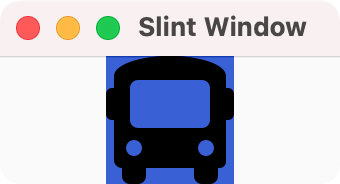
Running the program with `cargo run` opens a window that shows the icon of a bus on a blue background.
Compiling the program with `cmake --build build` and running with the `./build/my_application` opens a window that shows the icon of a bus on a blue background.
Running the program with `npm start` opens a window that shows the icon of a bus on a blue background.
Running the program with `uv run main.py` opens a window that shows the icon of a bus on a blue background.